

A DbImport lets you push data from your own system (ERP, WMS, ...) into Wello using a spreadsheet file, without needing to map every field yourself through individual entity endpoints.
Every time you send us a file, Wello re-reads it in the background and creates or updates the corresponding records accordingly.
This is exposed through the entity db_import. Rather than one generic endpoint, each kind of data has its own dedicated, type-safe endpoint under api/DbImport/... - the endpoint itself fixes the import_type, so you never need to (or can) supply it yourself.
Every import type below supports the same three operations: GET (list), GET by id, and POST (trigger a new import). Everything in the rest of this page applies identically to all of them - only the endpoint name and the import_type behind it change.
| Data | Endpoint |
|---|---|
| Stock | api/DbImport/Stock |
| Company | api/DbImport/Company |
| Equipment | api/DbImport/Equipment |
| Jobs | api/DbImport/Jobs |
| Tasks | api/DbImport/Tasks |
| Article | api/DbImport/Article |
| Equipment Model | api/DbImport/EquipmentModel |
| Contacts | api/DbImport/Contacts |
| Location | api/DbImport/Location |
| Work Instructions | api/DbImport/WorkInstructions |
The rest of this page walks through the flow using Stock as a worked sample - swap in the endpoint from the table above for the data you actually want to import.
There are 2 phases: a one-time setup done manually in the Portal, and the recurring update done entirely through the API.
1. One-time setup (Portal): someone at your company creates the import template in the Portal, for the import type you want to use. This defines how the columns of your file map to Wello's fields.
2. Recurring update (API): every time you want to push new data, you upload the file and trigger the import in a single call. Wello automatically reuses the mapping from the template, so you never touch the mapping again.
If nobody ever created a template for that import type in the Portal, step 2 (the API call) will fail with "No template found for this import. Please initiate the import via the Portal to generate the template." see Step 1.
Before you can use the API, someone needs to run the import once from the Portal with your initial file (for example stock-import-initial.xlsx for a Stock import) — this is a real import, not a throwaway sample, so it can be your actual current data.
This first, manual run does 2 things:
db_import.is_template = 1) for that import_type.
Every future import you trigger through the API for this import_type automatically reuses this template's mapping - you only need to do this once.
If you create more than one template for the same import_type (e.g. different mappings for different files), the API can no longer pick one for you automatically - every POST must then include template_name (see Step 2) with the exact name of the template to use.
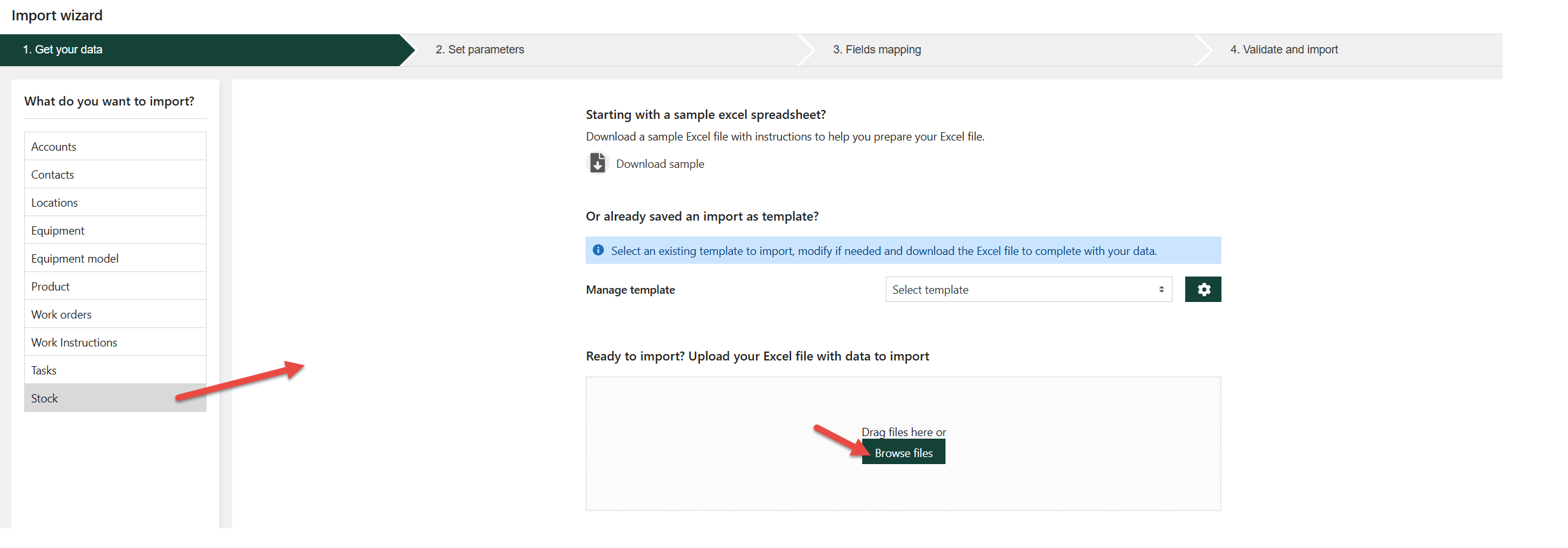
Sample: Stock import. In the Portal, pick Stock and upload your initial product stock file:
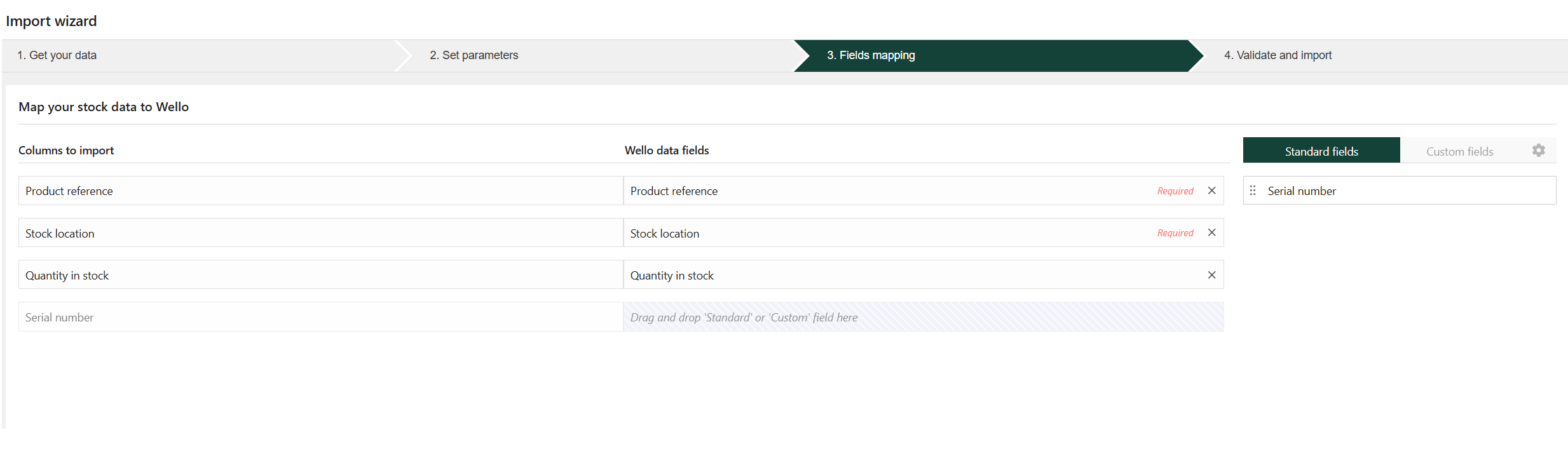
Map its columns to Wello's fields:
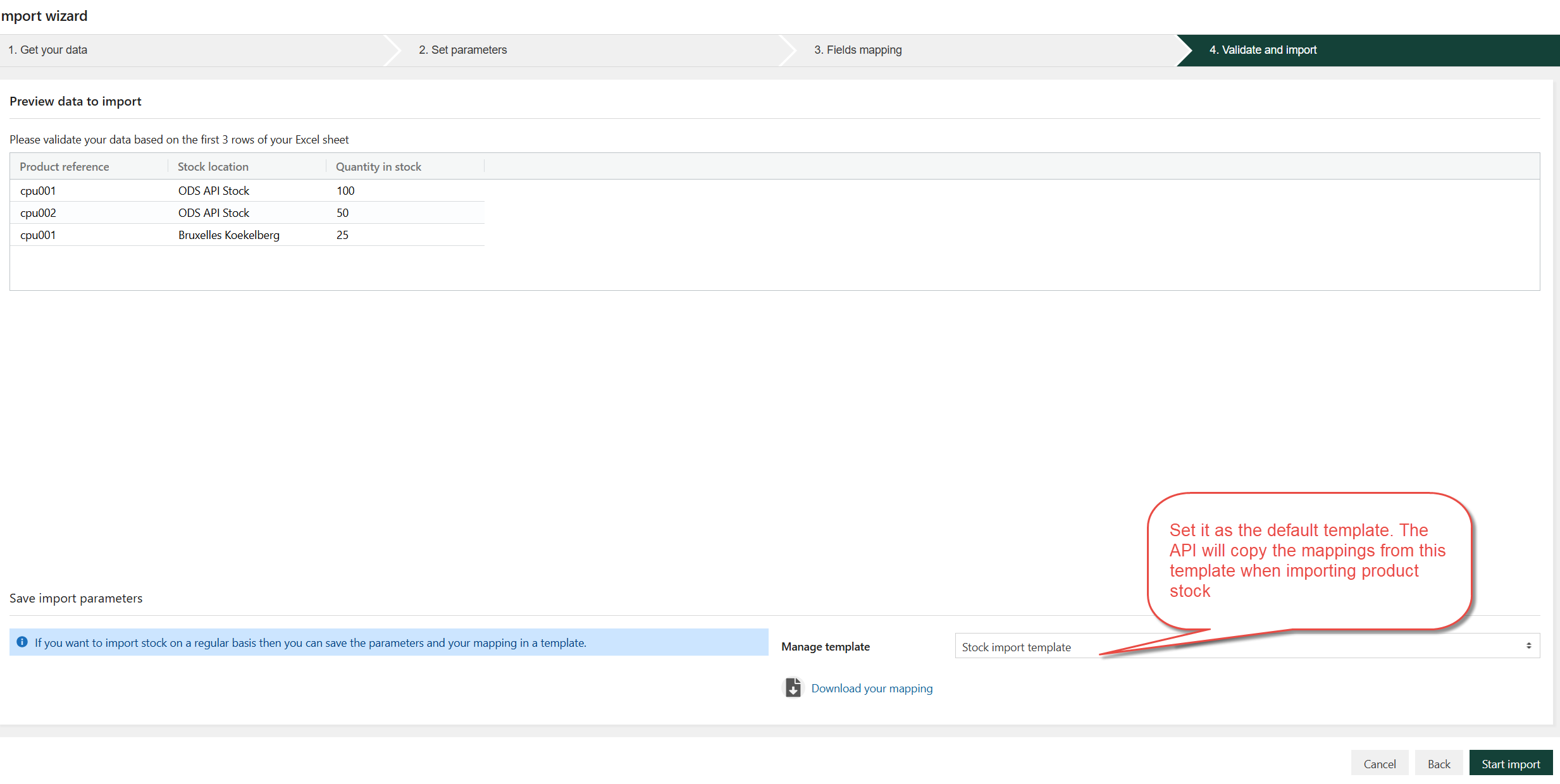
Save it as the default template so the API can reuse this mapping for every future import:
Once this first import is processed, the data of your file already appears in Wello (for the Stock sample: the quantities on article_stock_location_list).
From now on, every time your data changes, build a new file with the updated data (for example stock-import-update-20260730.xlsx for a Stock import) and send it directly to the endpoint for the data you want to import (see the table in Which import types are available?). This single call both uploads the file and queues the import to run in the background.
Endpoint (Stock sample):
HTTP POST : api/DbImport/Stock
Supply the file in one of 3 ways:
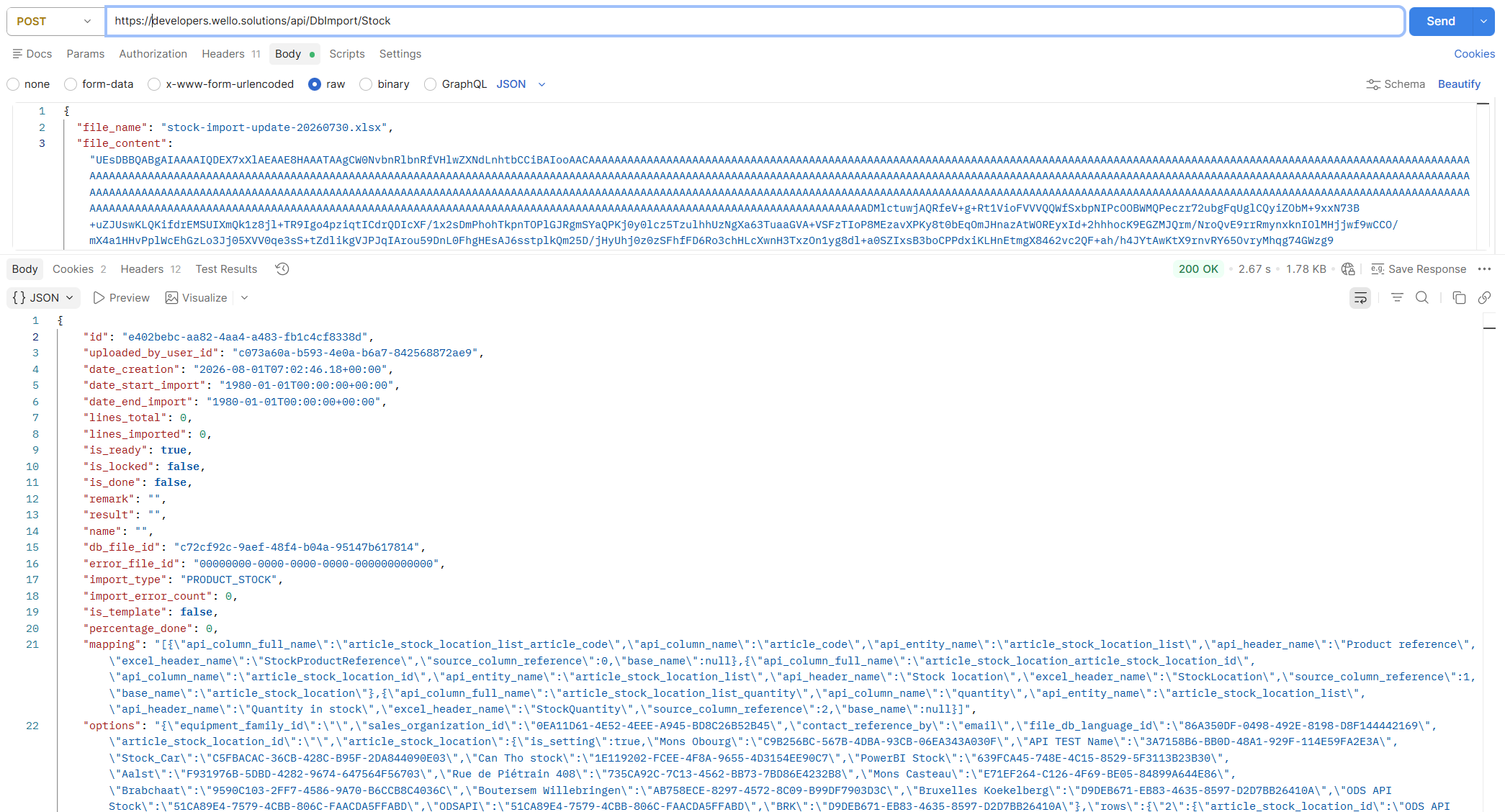
file_name (required - it can't be inferred from the content), e.g. { "file_content": "...", "file_name": "stock-import.xlsx" }.
id instead of sending the file again, e.g. { "db_file_id": "..." }.
You don't need to (and cannot) supply import_type, mapping or options here: each endpoint always uses its own fixed import_type and clones mapping/options automatically from the template created in Step 1.
template_name (optional, add it as a form field alongside multipart/form-data, or as a JSON property alongside file_content/db_file_id): the exact name of the template to use.
import_type? Omit template_name - it's used automatically.import_type? template_name is required - the request fails otherwise (see Common errors).template_name you sent.Example: upload via multipart/form-data — post the file itself as the form file, no JSON body needed:
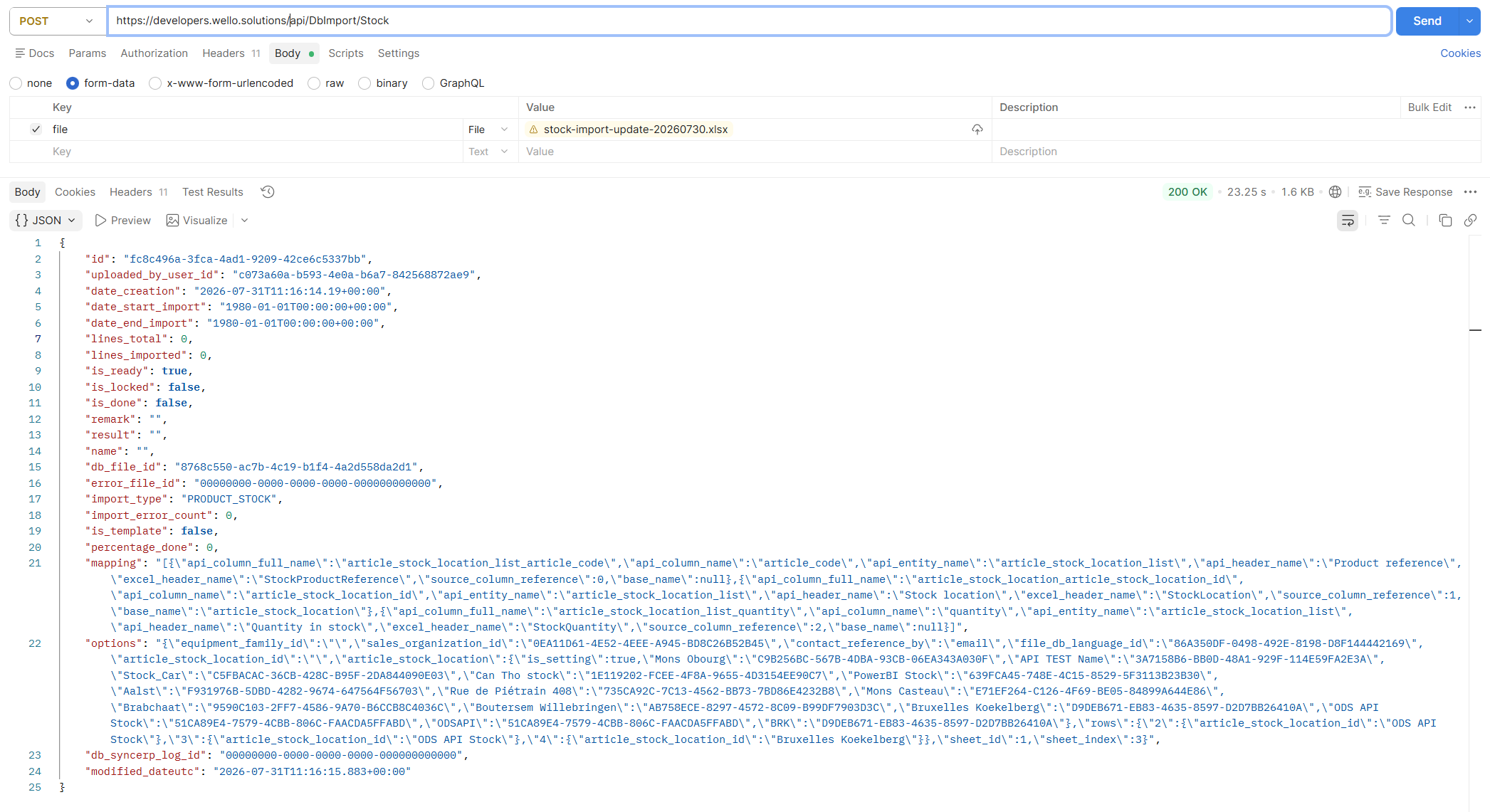
Example: upload via file_content — JSON body with the file's content as base64, together with file_name:
Example: import with a specific template_name — multipart/form-data with the file plus a template_name form field, used here because more than one template exists for this import_type:
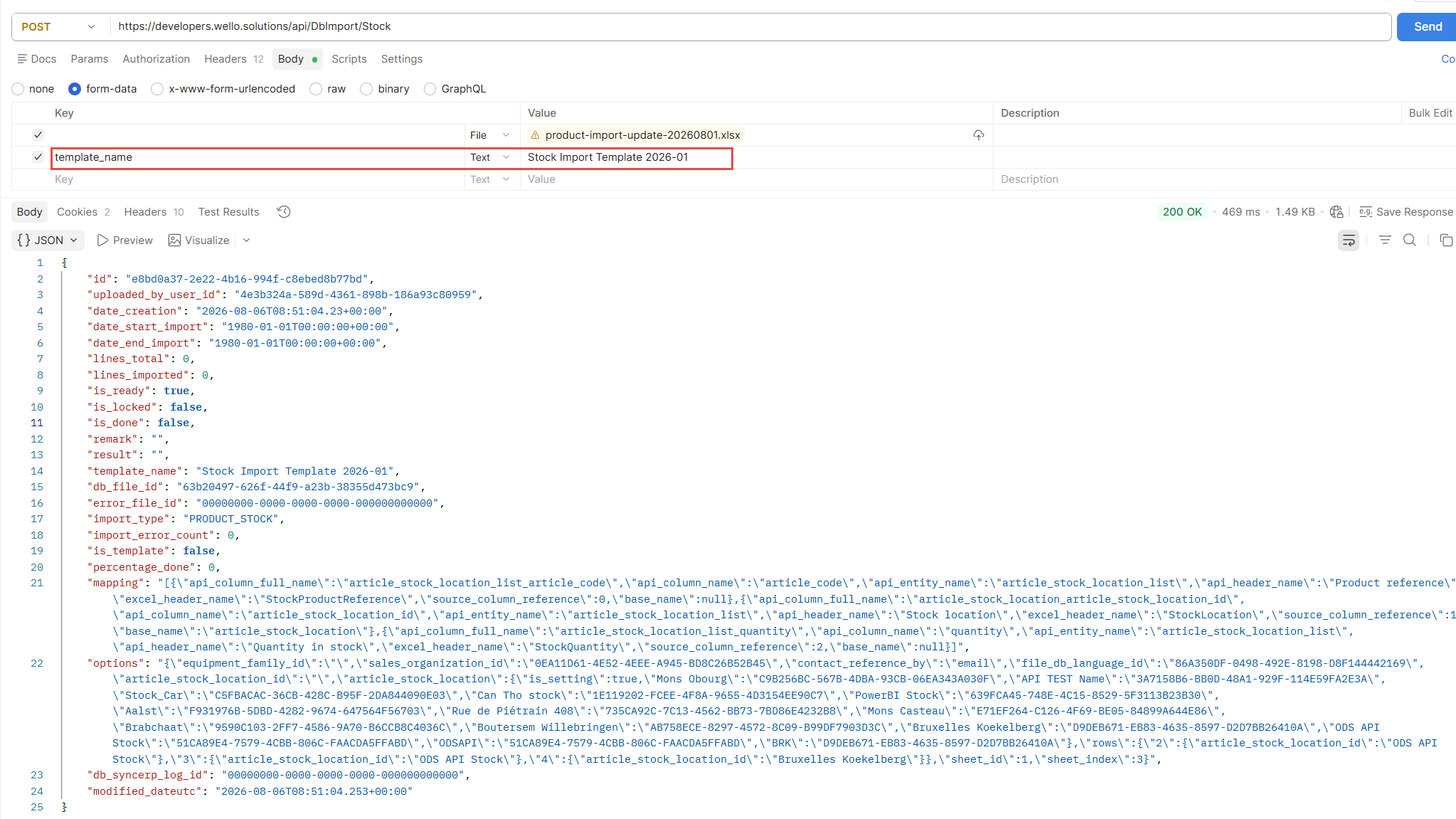
Either way, the response is the newly created db_import row (with db_file_id pointing at the file that was just uploaded, template_name showing which template was applied, and mapping/options already filled in from it).
The import runs in the background, so POST in Step 2 only queues it. Poll the db_import row to know when it's done:
HTTP GET : api/DbImport/Stock({id})
Or list all your imports of that type (most recent first), optionally filtered on the file used:
HTTP GET : api/DbImport/Stock?$filter=db_file_id eq F086B579-2379-42AE-BFEF-01F6E2AD5F55
Fields to watch:
true once the background processing has finished
Once is_done = true and import_error_count = 0, your data is live in Wello (for the Stock sample: the updated quantities on article_stock_location_list).
If import_error_count is greater than 0, some lines of your file could not be processed (unknown reference, invalid value, ...).
The detail of every error/warning, line by line, is available (read-only) on:
HTTP GET : api/DbImportLog?$filter=db_import_id eq {db_import.id}
Key fields:
true for a non-blocking warning, false for a blocking error
api/DbImportLog only supports GET (single record and list, with OData filtering) - entries are written by the import engine itself, so POST/PUT/DELETE are not available.
The db_import row itself also carries an error_file_id: a foreign key to a generated db_file containing the same error details as a downloadable file, when the import produced one. Fetch its content via:
HTTP GET : api/DbFile({error_file_id})
This error file is also available to your users directly in the Portal's Document module - the API and the Portal read the same underlying db_file.
"No template found for this import. Please initiate the import via the Portal to generate the template"
Nobody has run this import type from the Portal yet. Do Step 1 first - it only needs to be done once per import type.
"The db_file id='...' does not exist in the database..."
The db_file_id you passed in Step 2 doesn't match a file you uploaded earlier via api/DbFile. Double check the id, or send the file directly instead (multipart/form-data or file_content).
"Either db_file_id or file_content is required"
The request sent to the api/DbImport/... endpoint had no posted file, and its JSON body had neither db_file_id nor file_content.
"Both file_content and file_name are required to upload a file inline"
The JSON body sent only one of file_content/file_name. Unlike multipart/form-data (where the posted file already carries its name), the file name can't be inferred from base64 content alone - both fields must be sent together.
"Multiple templates are available for this import type. Please provide template_name to select which one to use."
More than one template exists for this import_type and the request didn't say which one to use. Add template_name with the exact name of the template you want (see Step 2).
"No template found with name '...' for this import type. Please check the template_name."
The template_name you sent doesn't exactly match any existing template for this import_type. Double check the spelling against the template name shown in the Portal.